How to find a picture with AI photo search
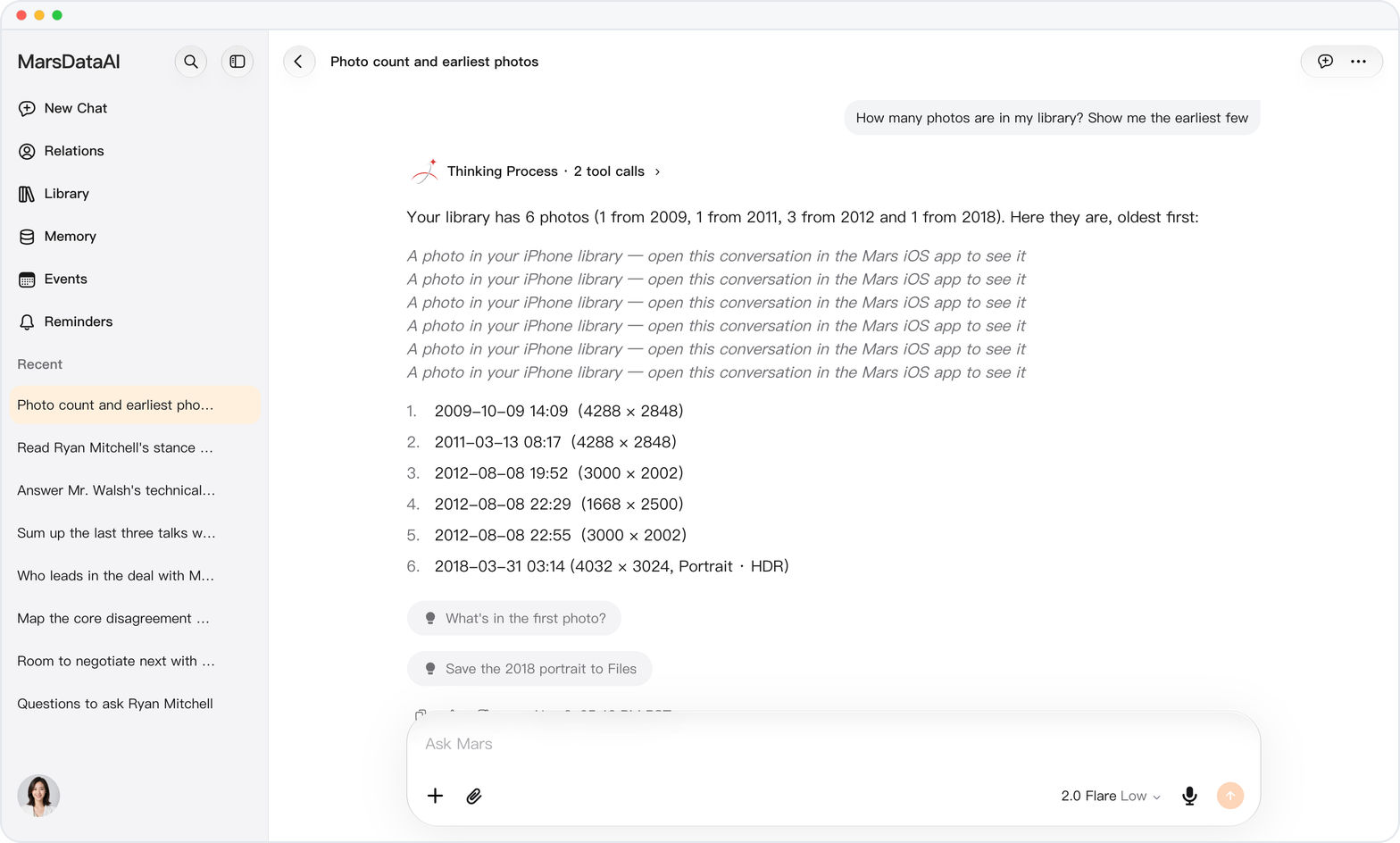
Scrolling years of camera roll for one photo is slow. Allow Photos in the MarsDataAI iOS app and ask in plain words; AI photo search shows the matches.
In the MarsDataAI iOS app, open Connected Platforms and allow Photos. Then ask, for example how many screenshots you took this year or for the selfies from last summer's trip: MarsDataAI searches your library by date, kind such as screenshot, selfie, video or favorite, and album, and shows up to nine matches as a gallery you can swipe. Nothing is uploaded to show them. When you want to use one, as an avatar or a file, MarsDataAI uploads only that photo.
Turn on AI photo search in the iOS app
Open the MarsDataAI app on your iPhone or iPad, go to Settings and choose Connected Platforms. Tap Allow next to Photos and confirm in Apple's permission sheet. If you choose Limited access, MarsDataAI counts and searches only the photos you selected and says so in its answers; Add Accessible Photos lets you pick more later. Photos has its own switch, separate from contacts and health: turn it off to pause MarsDataAI without touching the iOS permission, or revoke access in iOS Settings.
Find photos by time, kind and album
Counting questions are answered in one search: how many screenshots this year, how many videos in 2023, which was your first photo. To find a particular moment, MarsDataAI searches a date window and filters by kind, such as selfie, portrait, live, panorama or favorite, or by album name. If you ask for a photo of someone without saying when, MarsDataAI first asks roughly when it was taken, using what it already knows about that person, so it searches the right months instead of guessing.
Use a photo without uploading your library
Found photos appear straight from your phone, so showing them uploads nothing. Tap one to view it full screen. When you ask MarsDataAI to use a photo, for example as a contact's avatar, to save it to Files or to look at what is in it, MarsDataAI uploads only that one photo to your Files. For an avatar, you crop and confirm it in a card before anything is saved. The rest of your library never leaves your iPhone.
The photo you need appears in seconds, and the rest of your library stays on your phone.
See the rest of Connected Platforms & Sync in MarsDataAI Wiki.